
Freeware Linux Reader™ for Windows
Safe and quick access to alternative file systems
Linux Reader™ is a popular and free software product, and it remains non-commercial freeware. Since version 4.0, there are extra features that are available as Linux Reader Pro™.
With Linux Reader Pro™, you can read files from even more file systems, get remote access through an SSH connection, create a virtual drive, export files via FTP, and more.
If you need to write files to Linux partitions from Windows, use Linux Writer™, a separate free tool for modern Ext4 volumes.
All significant features of Linux Reader™ remain free: no annoying advertising, no trial mode, no restrictions.
Linux Reader Pro™ and Linux Writer Pro™ share a license key, so purchasing either product gives you access to both.
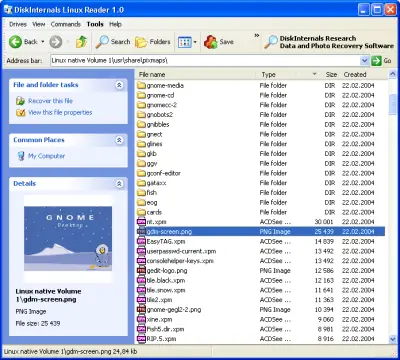
- Safe read-only accessBoth editions leave the source drive unchanged.
- Access Linux filesRead files regardless of Linux file security policies.
- Windows compatibilityWindows 7, 8, 10, or 11.
Linux Reader Free vs Pro
| File Systems and Features | Free | Pro |
|---|---|---|
| RAID Support | 0, 1, 4, 5, 50, 10, and JBOD | |
| Free file preview | Included | Included |
| Create disk images | Included | Included |
| Ext2/3/4 | Read and save files Undelete | Read and save files Undelete, Recovery |
| APFS, RomFS | Read and save files | Read and save files |
| ReiserFS/Reiser4, HFS, HFS+, UFS2 | Read and save files | Read and save files Undelete |
| FAT/exFAT, NTFS/ReFS | Read and save files | Read and save files Undelete |
| Btrfs | Preview only | Read and save files |
| ZFS, XFS | Preview only | Read and save files Undelete |
| Hikvision/Dahua DVR | Preview only | Read and save files Undelete |
| Encrypted APFS, BitLocker | Preview only | Read and save files |
| SSH access, Windows drive letter, and FTP export | — | Included |
| Linux Writer | Free | Pro |
With Linux Reader Pro™, you can also remotely access files via SSH on Linux, FreeBSD, NetBSD, QNX, Mac OS, and other Unix-like file systems.
Linux Reader™ and Linux Reader Pro™ Essentials
All Drive Types
Read files from all types of hard drives, including SSD, HDD, flash drives, memory cards, and others.
Read-only Access
Read-only access to files in Linux drives, leaving the original files intact.
Free File Preview
Free preview of the contents of files to ensure integrity.
Access Linux Files
Access any files on Linux system, bypassing security policies.
Create Disk Images
Create a disk image of the drives you have access to.
Additional Tools
Launch Linux Writer and Ext4 Formatter as separate tools directly from Linux Reader.
For the moment, DiskInternals Linux Reader™ is the premier software tool on the market, providing you with access from Windows to various Linux file systems like Ext2/Ext3/Ext4, HFS, ReiserFS, and others.
You are welcome to download the free version of Linux Reader™ right now. This version allows you to upgrade to Linux Reader Pro™.
How to Read Linux Files on Windows
Download and Install Linux Reader™
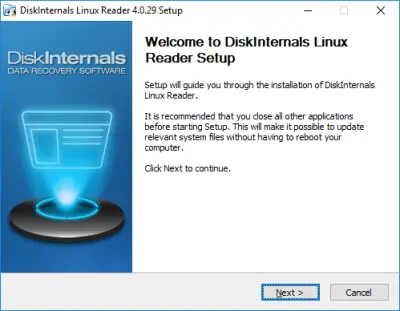
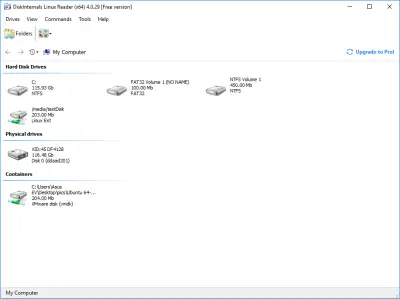
Run Linux Reader™ and Open the Drive
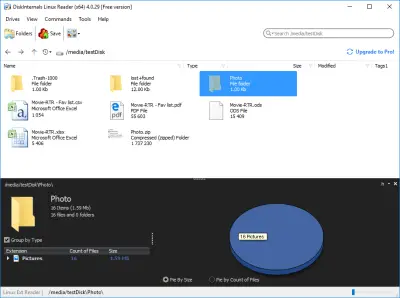
Browse and Preview Files
Browse pictures, videos, documents, and other files. Right-click a file and choose “Preview in New Window” to check its contents. Preview is free.
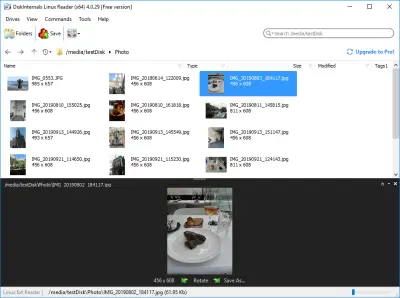
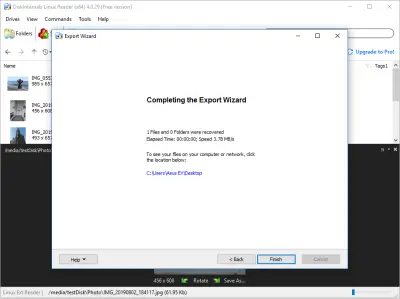
Save Files From Linux to Windows
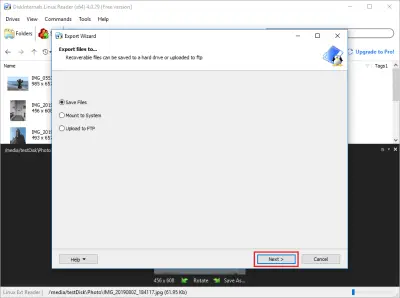
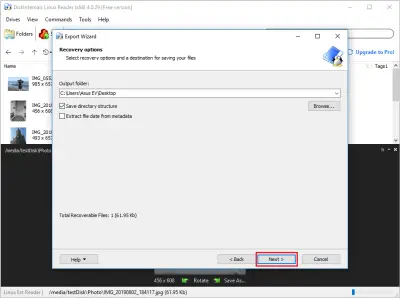
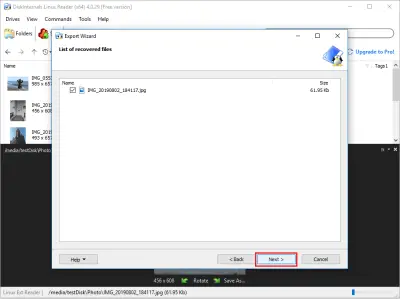
Upgrade for Pro Features
A Linux Reader Pro™ license is required for SSH access, export from Pro-only file systems, virtual drive mapping, and FTP export. The license includes software updates for 12 months and priority technical support.
Related Linux Tools for Windows
Linux Reader FAQ
-
Install Linux Reader on your Windows PC, select your Linux drive, and browse or preview its files. It reads Ext2, Ext3 and Ext4 and works on Windows 11. You don't need to convert the source file system.
-
Both Linux Reader and Linux Reader Pro open the source drive in read-only mode, so they don't write changes to it. Save any files you copy to a separate destination.
-
With the free edition, you can read and export files from Ext2, Ext3 and Ext4 drives and other supported file systems. Pro also reads XFS, ZFS and Btrfs and adds SSH access, FTP export and virtual drive-letter mapping. Both editions leave the source drive read-only.
-
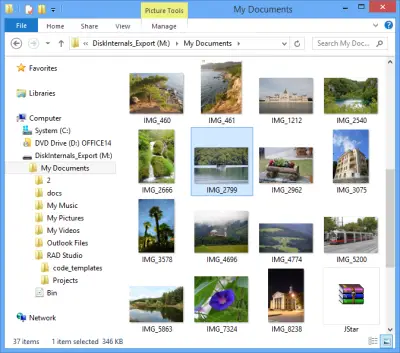
Open your Linux drive in Linux Reader, choose the files or folders you need, and save them to a folder on a Windows drive. You can export files with either edition, as long as it supports the source file system.
-
No. Both Linux Reader and Linux Reader Pro are read-only tools. You can copy files out, but you can't edit them on the source partition. For Ext4 write access, see the separate DiskInternals Linux Writer tool and check its compatibility requirements.
-
With Linux Reader Pro, you can map supported disks or files to a virtual Windows drive letter and access them in read-only mode. The free edition doesn't include this feature. You can still browse files in Linux Reader and export them to Windows.
Related articles
- Guide in Pictures
- About a bash date command
- How to Access Linux Ext2 or Ext3 on Windows
- How to Access Ext4 from Windows
- How to Mount Ext4 on Windows for Free
- Mount Linux Drive on Windows for Free
- Bash Script: All You Need to Know
- An Algorithm: How to Create Bash While Loop
- Linux Shell: What You Need to Know at First
- 5 Basic Shell Script Examples for Your First Script
- How to Use Shell Script Sleep Command
- Bash: How to Check if the File Does Not Exist
- Bash Time Command on Linux
- How to use bash get script directory in Linux
- How to Check Bash String Equality
- How to Use Linux Wait Command
- Bash: How to Loop Through Files in Directory
- 20 Examples of Bash Find Command
- Bash Cat Command in Examples
- Bash Script SSH: How to Use It
- Bash: A Script For User Input
- Linux ZSH: the basic you need to know
- Basic of Grep in Linux Shell Script
- Shell Script Cut: Basic You Need to Know
- Bash: How to Check if String Not Empty in Linux
- Bash: how to split strings in Linux
- Linux: Sudo in Bash Scripts
- Hello World Script in Bash
- A Linux bin/bash Shell
- Linux: New Line in Shell Script
- Linux: Bash String Ends With
- Linux: Bash Printf Examples
- Linux: Bash First Line
- Linux: $0 in a Shell Script
- Linux: A Bash Startup Script
- Linux: Write a Shell Script
- Shell Script: Replace String in File
- A crontab service shell script
- A Bash Multiline Command
- Bash and sh: is there any difference
- A Bash Dirname Command
- Linux: A Bash Source Command
- A Bash to Loop through Lines in File
- Linux: A Bash Linter
- A Bash Nested Loop
- A Bash Test Command
- Use a Shell Script to Send an Email
- A Bash Status of Last Command
- Linux: A Bash Basename Command
- Using Bash to Write to a File
- About Bash Language
- Bash for Loop in One Line
- AWK in a Bash Script
- Learn about useful bash scripts
- Learn about systemd startup script
- About chaining bash commands
- Learn about a bash error code
- Using a bash tee command
- About a bash export command
- Learn about a bash wait command
- Arch Linux install script
- About advanced bash scripting
- To run a shell script in Dockerfile
- About a bash UNTIL loop
- Learn about C shell script
- Learn about Korn shell scripting
- Using /usr/bin/env command
- Whether bash waits for command to finish
- Using bash if 0
- Using && in an IF statement in bash
- If you want to run shell script in background
- The disk you inserted was not readable by this computer error
- Learn about SFTP in bash scripting
- Learn to run Perl script in Linux
- Examples of using the Expect
- Copy command in shell scripts
- Shell script usage
- Install Oracle Database
- Here is everything you need to know about Bash for Windows